

iQS-Streampipe: How to Change the Custom Model and Video Source
This SDK guide covers editing config.json to change the model, video source and channel count for iQS-Streampipe — for running the pipeline on your own video or your own detection model.
Supported Versions
Choose the iQ-Studio version that matches your platform. To check your BSP version, run cat /etc/innodisk/BSP-version on the platform.
| Your platform | iQ-Studio version |
|---|---|
| BSP v2.5.0 or later | v0.0.11 or later |
| BSP earlier than v2.5.0 | v0.0.10 |
Ubuntu image x09 | v0.0.10 |
For v0.0.10, run git checkout v0.0.10 in the iQ-Studio directory before ./install.sh. To return to the latest version, run git checkout main.
How to Deploy
- 1At least one UVC camera
- 1080p/30fps (1920x1080 pixels)
- MJPEG compression format
Due to limited bandwidth, do not use more than 3 UVC cameras at once. - 2At least one MP4 video uses the H.264 codec.
How to modify the content displayed, please refer to the config.json file in the current directory.
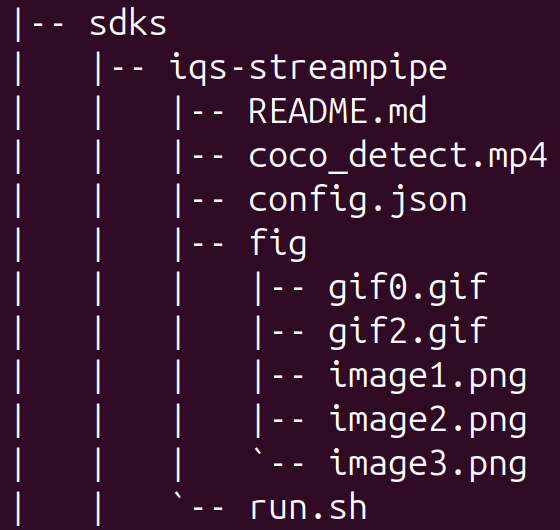
- 1Navigate to the iqs-streampipe directory and check the file in your current directory.
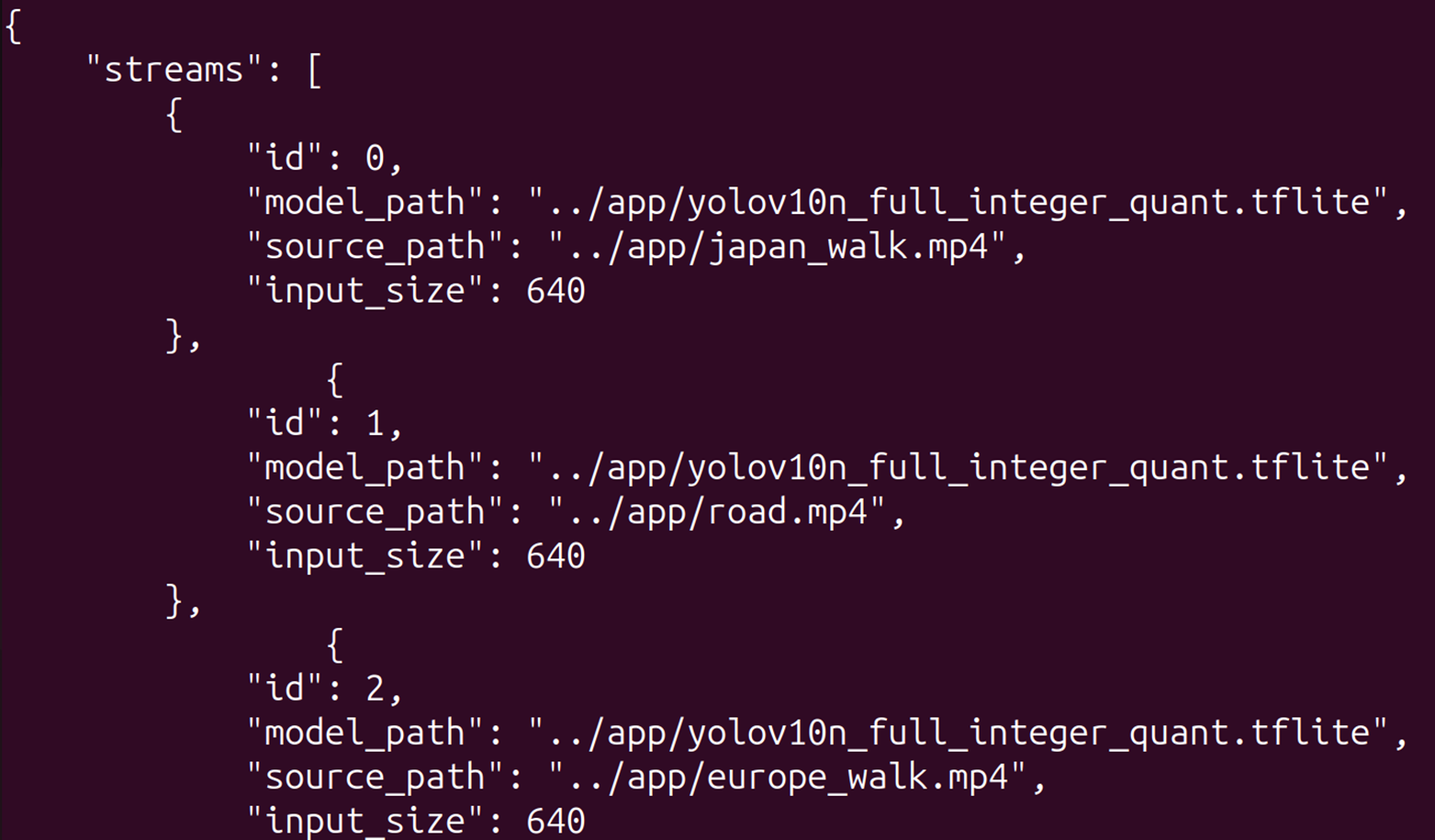
- 2Open the config.json file in the current directory
To open and edit the config.json file. (default parameter)
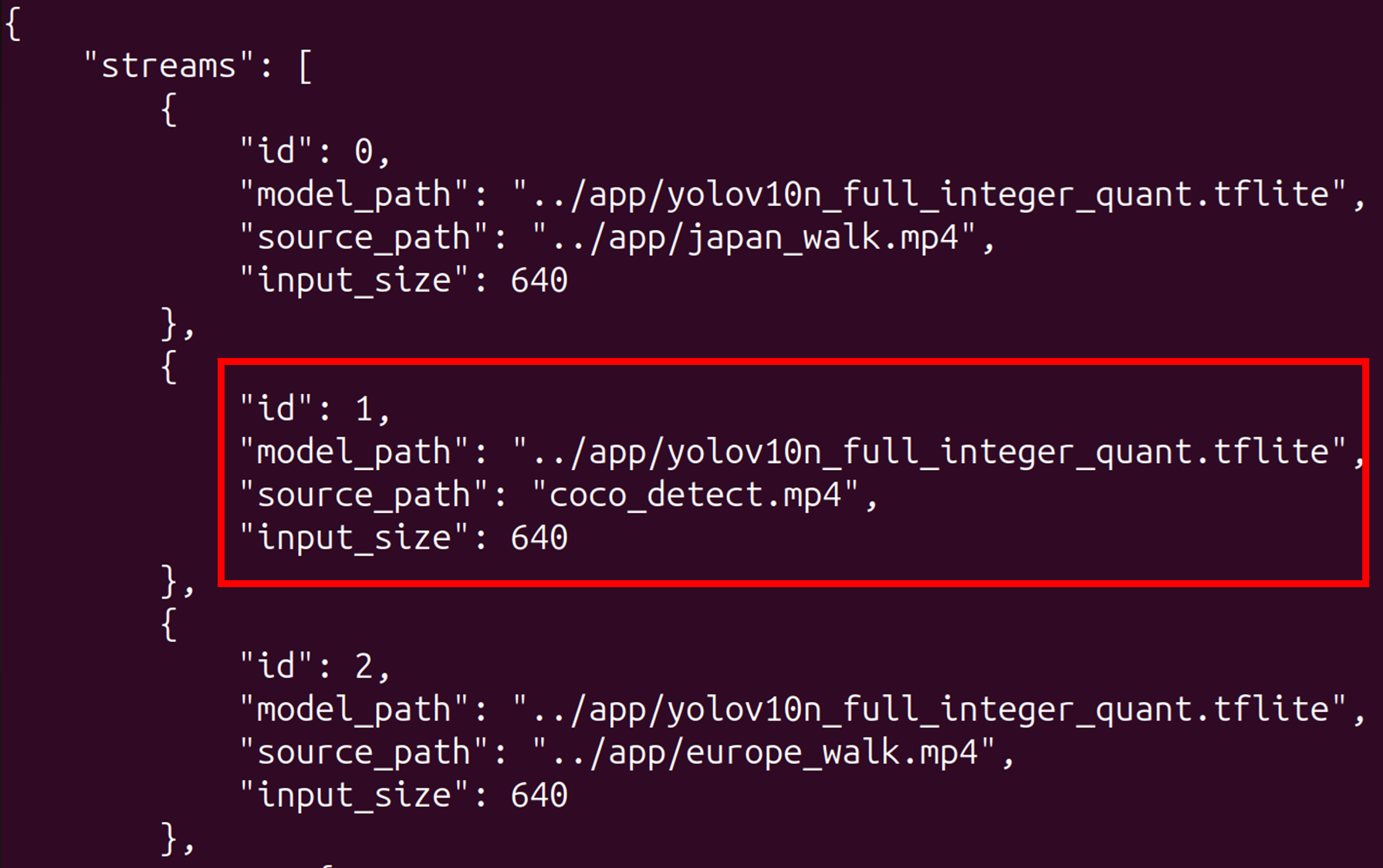
- 3Modify config.json. We have changed the video under
id: 1tococo_detect.mp4. You may replacecoco_detect.mp4with your own video file if desired.This config is not the default config in the Docker container.Enter the Relative Path into the config file.
- 4After you finish modifying.
save and close the config.json.
- 5Run the iqs-launcherYou must add the
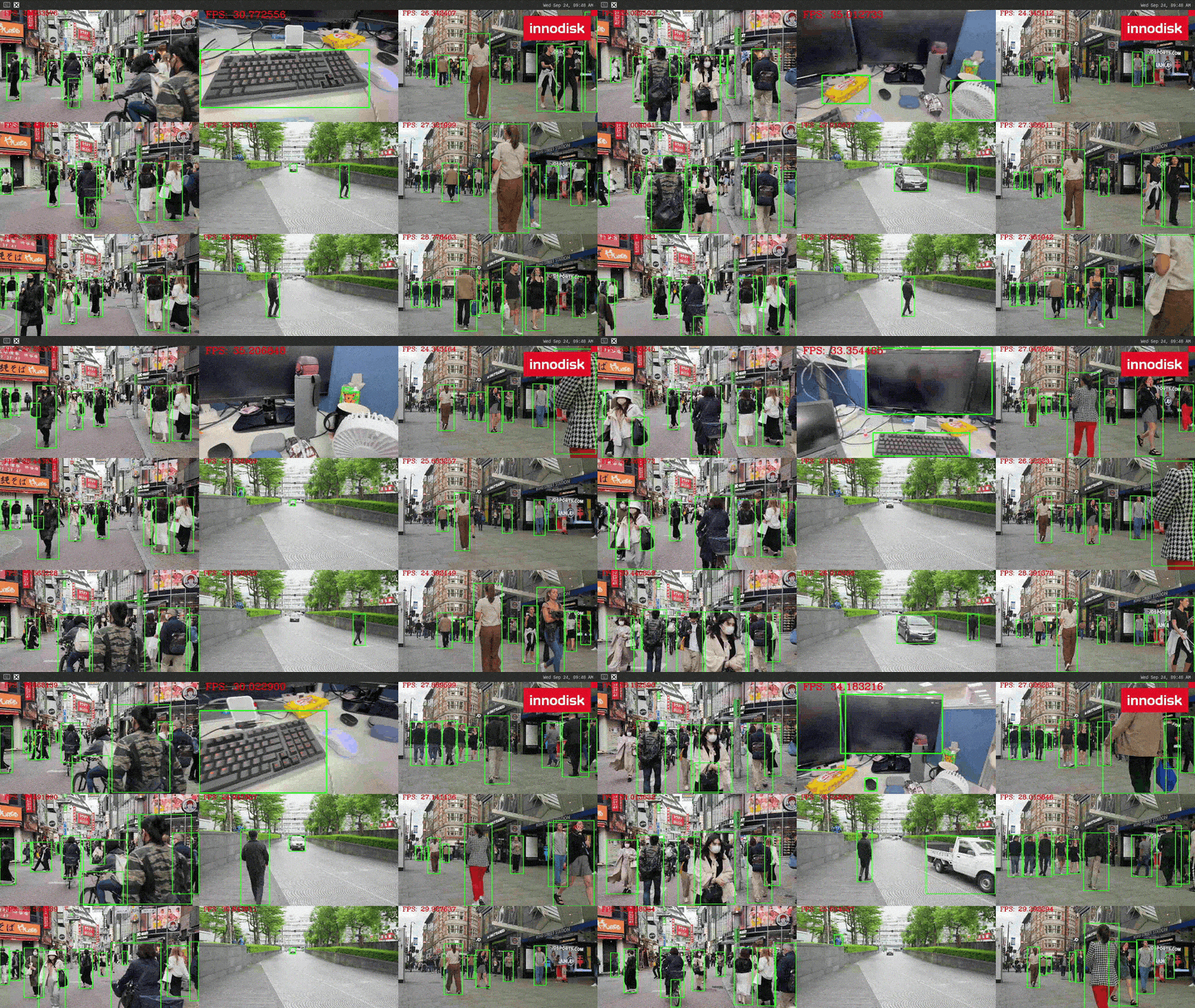
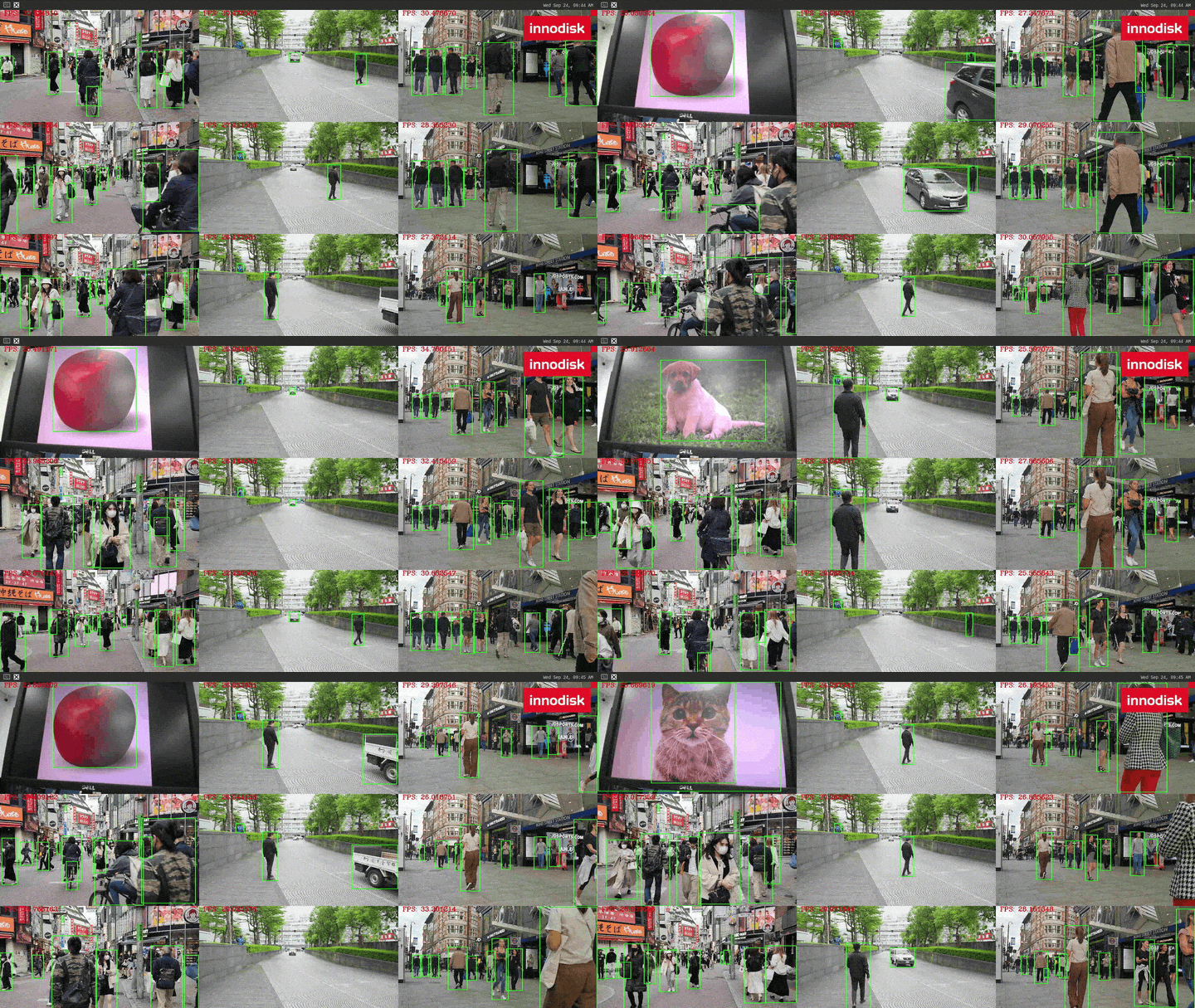
--other "-c config.json"option to change the videos. - 6Change the display of ID 1 to the specified view.The demo GIF may take some time to load. If it does not appear immediately, please wait.
How to use a UVC camera to capture video frames for real-time prediction.
When a UVC camera's USB plug is connected to the platform's USB port, the video prediction will automatically switch to and display the real-time prediction results from the UVC camera feed.
When multiple cameras are plugged in, the results will be replaced based on channels, starting with channel 0, then channel 1, and so on.
Known Issue
The current Qualcomm codec driver may under certain conditions, cause the system to restart unexpectedly. If this occurs, re-run the process to continue.