

Model Deploy: How to Convert, Optimize, and Perform Inference with YOLO26 Models
This iQ-Studio tutorial follows the iQ-Foundry YOLO26 workflow for EXMP-Q911 (Qualcomm QCS9075). It covers the default flow for INT8 quantization, conversion, quality assurance, and ADB-based inference.
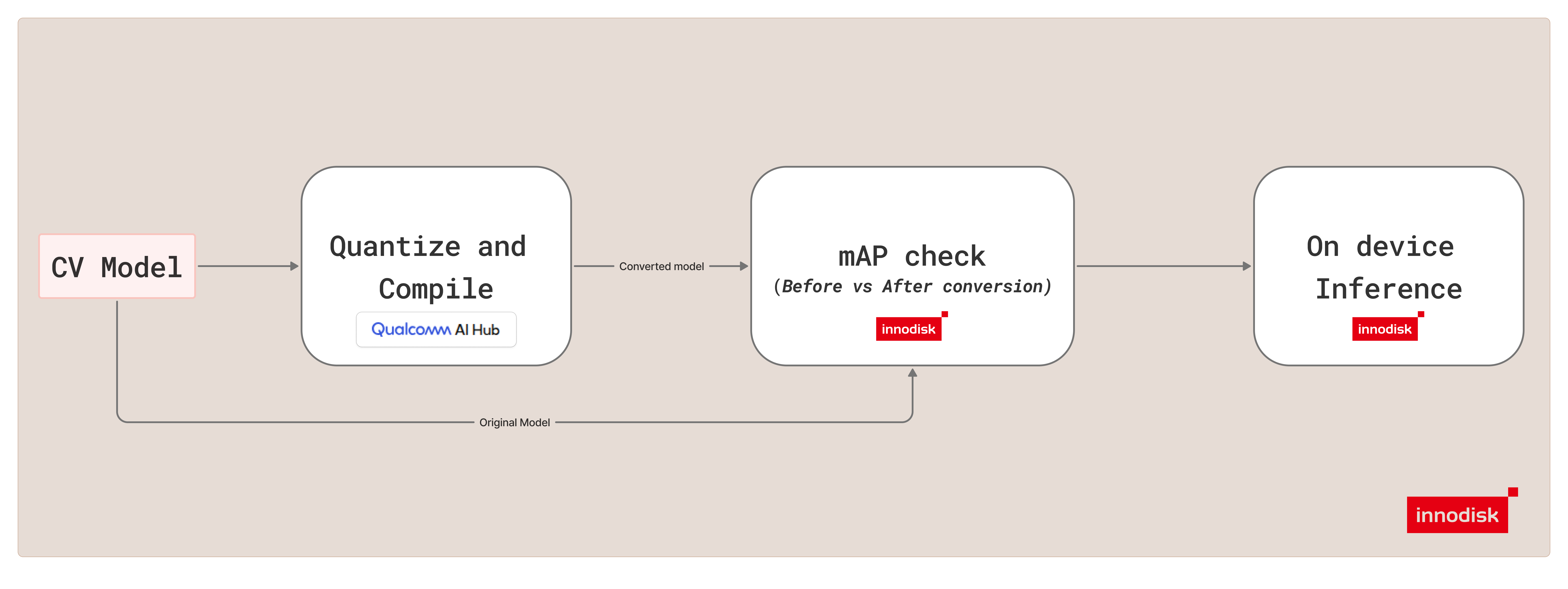
Overview
This guide follows a straightforward end-to-end flow:
- 1Quantize and convert the FP32 YOLO model to INT8
.tflitemodel with Qualcomm AI Hub. - 2Compare FP and INT8 model quality with mAP.
- 3Run inference on Qualcomm Dragonwing IQ9 through ADB.
If you need pretrained YOLO weights (.pt), download the official models from Ultralytics.
Requirements
Step 1. Connect Device
Connect the Qualcomm Dragonwing IQ9 target to the host with a USB-C cable.
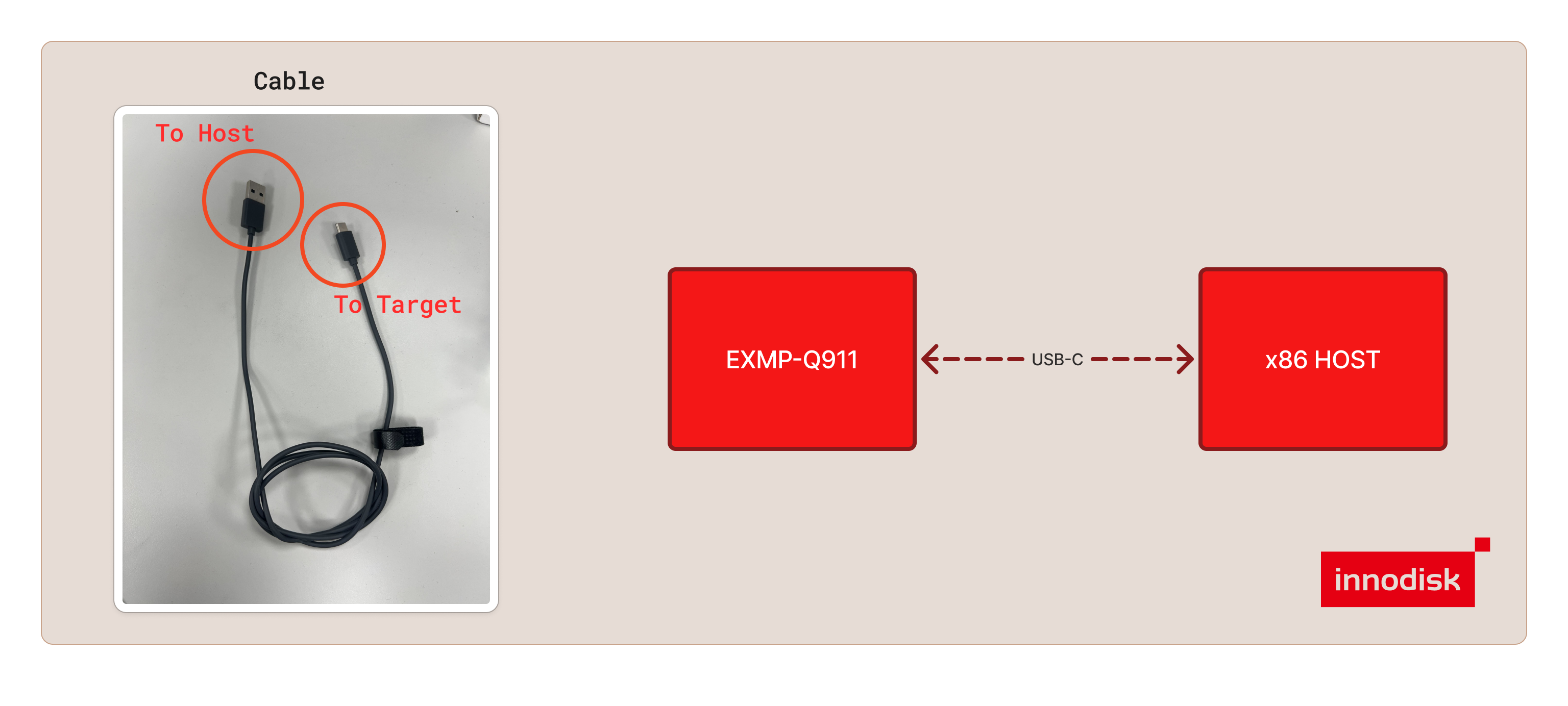
adb reference: adb overview. No steps are required from that page for this tutorial.
For more about ADB interaction, see Interact with the system using adb.
Step 2. Clone the Repository and Set Up the Environment
Clone the iQ-Foundry repository, go to the repository directory, and source the setup script:
This prepares the Python environment, installs the required host packages, and checks ADB access.

Step 3. Authenticate with Qualcomm AI Hub
Log in to the Qualcomm AI Hub Workbench.
Navigate to Account -> Settings -> API Token to find your unique key.
Configure the host with your API token:
Step 4. Run the Modes
--type option supports yolov10, yolov11, and yolov26.Follow the steps for each mode below to convert the model (qc), evaluate its quality (mAP), and deploy YOLO inference (test).
1. QC
qc quantizes the YOLO model to INT8 and converts it from .pt to .tflite.
Configure the required paths:
When prompted, enter the requested model and calibration paths.

Run the mode:
This generates the converted YOLO .tflite model in the output directory.

Output location: out/model/yolov26/
2. mAP
mAP compares the FP model and the INT8 model at mAP@0.5.
Configure the required paths:
When prompted, enter the requested annotation, image, FP model, and INT8 model paths.
Run the mode:
For a smaller validation run, you can limit the number of images:
This produces the FP versus INT8 quality comparison report.
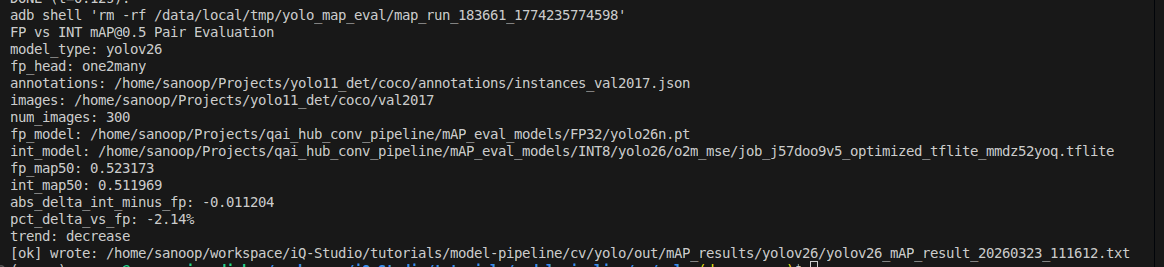
Output location: out/mAP_results/yolov26/
3. Test
test runs ADB-based YOLO inference on Qualcomm Dragonwing IQ9 and saves the output artifacts.
Configure the required paths:
When prompted, enter the requested model, YAML, and test image paths.
Run the mode:
This runs inference on the target and saves the generated result artifacts.

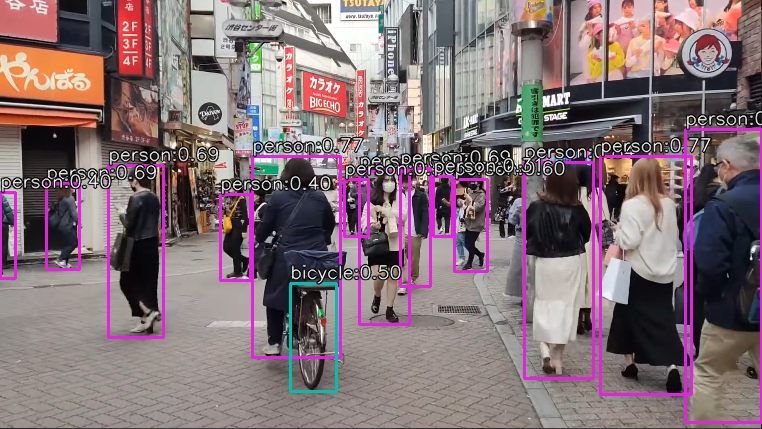
This inference example was generated using a pretrained Ultralytics YOLO26 model.
Output location: out/test/yolov26/
python3 cli.py --configure.Use iQ-Foundry for More Options
This iQ-Studio tutorial focuses on the default yolov26 workflow with LiteRT INT8. If you want to use other YOLO models, precisions, or runtimes, continue with the iQ-Foundry Ubuntu or Windows host guide and adjust the --type, --runtime, and --precision options there.
iQ-Foundry Supports:
| Category | Supported Options |
|---|---|
| YOLO models | yolov10, yolov11, yolov26 |
| Runtimes | LiteRT, ONNX Runtime |
| Precisions | FP32, w8a16 (mixed precision), INT8 |