

How to Use iqs-launcher
iqs-launcher is the execution entry point for every application shipped with iQ-Studio. It locates the Docker image for the application and runs it. It supports both online mode (pull from Docker Hub) and offline mode (load pre-staged files).
This page covers both modes side by side. For a single end-to-end demo command, see Get Started.
Introduction
iqs-launcher consists of three pieces:
iqs-launcher.sh— the shell entry point installed byinstall.shinto yourPATH.launcher.py— the dispatcher that parses CLI flags and routes to a module.mod/— module-level logic:mod/autotag.pyhandles Docker images,mod/run.pyexecutes application scripts, andmod/utils.pyprovides helper functions such as autotag parsing.
The public command surface is:
iqs-launcher does not check the BSP version. install.sh checks it once at installation, so choose the iQ-Studio version that matches your BSP as described in Install iQ-Studio.
Online Mode
Online mode is the default path. With internet access on the platform, iqs-launcher --autotag pulls the matching Docker image directly from Docker Hub.

Common online-mode commands used in the tutorials:
To pin a specific version, append :<version> to the autotag value, for example iqs-launcher --autotag iqs-yolov10n:v0.1.0. To pass extra flags to the underlying application, use --other, for example iqs-launcher --autotag iqs-streampipe --other "-c config.json".
Offline Mode
Use offline mode when the platform has no internet access. You pre-stage the Docker image (.tar) on a host PC, transfer it to the platform, and iqs-launcher loads it locally.

Step 1: Download the Package on a Host PC
.tar.- Install skopeo. On an x86 Ubuntu 24.04 host:
For other host systems, refer to the official skopeo installation guide.
Then use skopeo copy to download the image as a .tar archive. Search Docker Hub for the image you need. Enter innodiskorg/<application name> at position 1, then pick the version at position 2.
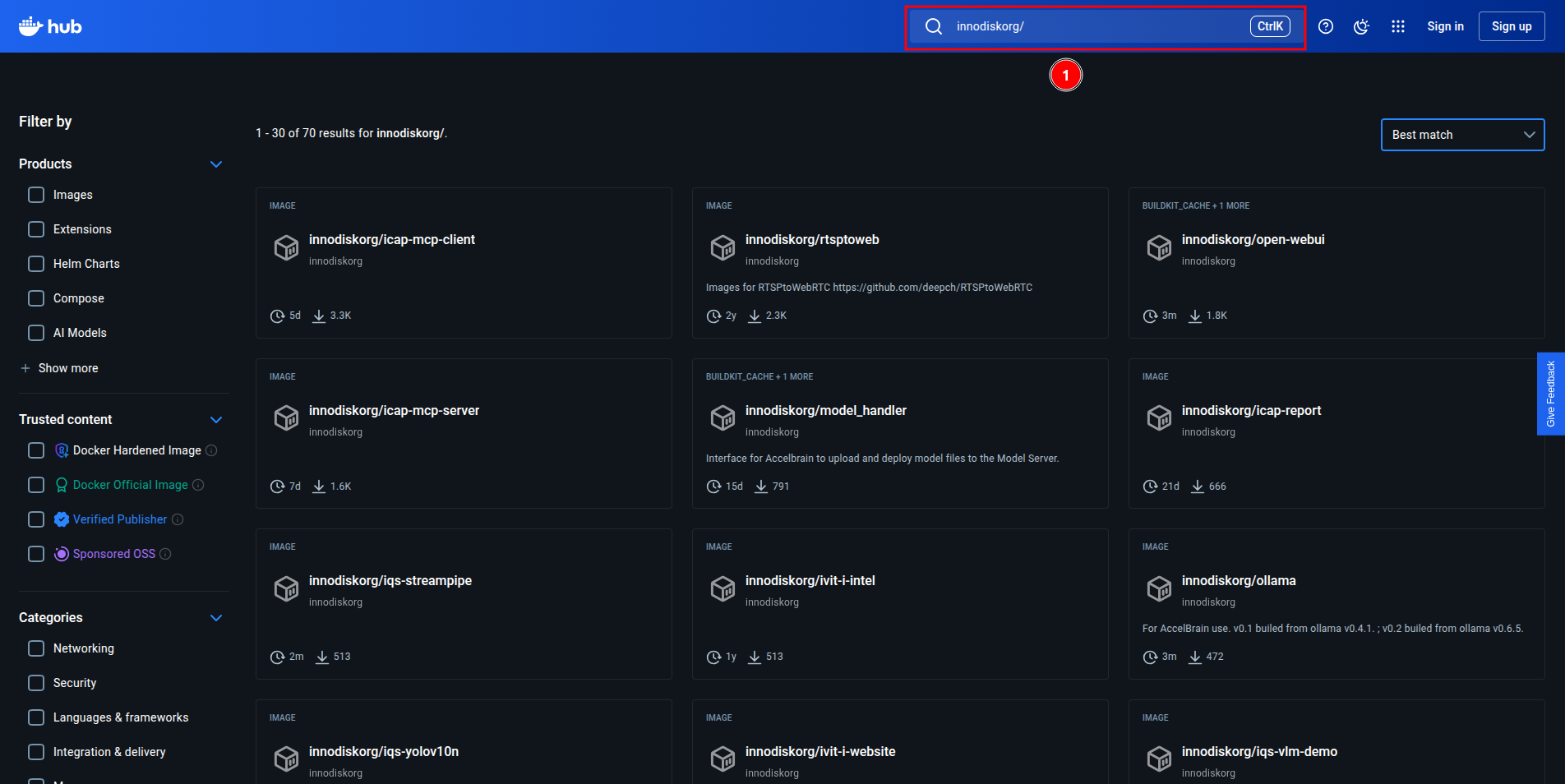
Download the image with the command below. Usage:
Example for iqs-vlm-demo version 0.0.1:
The result is a .tar file ready to transfer to the platform.
Step 2: Transfer the Package to the Platform
- Prepare a USB flash drive.
- Copy the
.tarto the USB drive, then insert it into the platform. - Locate the USB device on the platform:
Sample output (your hardware layout may differ):
Create a mount point and mount the USB drive (the example assumes you are in the home directory):
Copy the .tar into the iQ-Studio binaries directory:
Verify the package is in the correct location. The .tar must be under iQ-Studio/binaries/docker-images/:
Step 3: Launch the Application
Run the same iqs-launcher command as in online mode. iqs-launcher detects the local .tar and loads it directly without contacting Docker Hub. For application-specific usage, see the relevant page under Applications.
Troubleshooting
- BSP version mismatch:
install.shaborts when the BSP is earlier than v2.5.0. Rungit checkout v0.0.10in theiQ-Studiodirectory and install again.iqs-launcherdoes not select a version automatically, so make sure the iQ-Studio version matches your BSP (see Install iQ-Studio). autotagcannot find an image: in online mode, verify network access from the platform. In offline mode, confirm the.taris underbinaries/docker-images/and that the filename matches the autotag value.
Related
- Applications you can launch with
iqs-launcher: Applications. - Customizing an application after running it: SDKs.
- The
mod/source code is in the repository root under mod/.
Docker Images for Offline Mode
The binaries/docker-images/ folder is empty by default. iQ-Studio does not ship Docker images in this repository.
Use it only for the offline flow, when the platform has no internet access. Place the Docker image archive (.tar) of the application here, and iqs-launcher loads it directly without contacting Docker Hub.
- The file name must match the application name, for example
iqs-vlm-demo.tar. - If you cannot access Docker Hub, contact Innodisk to obtain the
.tar.
For how to download, transfer, and launch the image, see the Offline Mode section above.